
The Short Version
- Google Calendar: share it from the desktop website (Settings and sharing → Add people). You cannot share or set permissions from the phone apps.
- Apple / iPhone: share an iCloud calendar from the Calendar app (tap the info button → Add Person), or turn on Family Sharing to get an automatic shared "Family" calendar.
- Mixed iPhone + Android home: use a shared Google calendar. Apple's shared calendars need everyone on an Apple Account.
- The catch: a shared calendar holds events only. It won't read a school email, assign chores, or route reminders per kid. That's where a family organizer app comes in.
Sharing a calendar with your family sounds like it should take thirty seconds. Then you go looking for the button, discover it isn't in the app you're holding, and realize your partner is on Android anyway. This guide walks through the exact steps for Google and Apple, which one to pick for your household, and where native calendar sharing quietly stops being enough for a family.
How to share a Google Calendar with your family
Google Calendar is the most flexible option, mainly because it works on both iPhone and Android. The one thing to know up front: you have to do this on a computer. The Google Calendar mobile apps can't share a calendar or set permissions.
Share the calendar you already have
- On a computer, open Google Calendar (calendar.google.com).
- In the left sidebar under My calendars, hover over your calendar, click the three-dot menu, then Settings and sharing.
- Scroll to Share with specific people or groups and click Add people and groups.
- Enter each family member's email address (any Google account works).
- Pick a permission level (see below), then click Send. They get an email invitation to add your calendar.
What the permission levels mean
Google gives you four main tiers, from least to most access:
- See only free/busy (hide details): they see when you're busy, but not event names.
- See all event details: names, times, and places (except events you mark Private).
- Make changes to events: they can add, edit, and delete. This is the one you usually want for a partner.
- Make changes and manage sharing: full control, including sharing your calendar with other people.
The exact wording in the dropdown can vary slightly by account type, but those four tiers are the shape of it. To change or remove access later, return to the same Settings and sharing screen.
Create a brand-new shared family calendar
Often the cleaner move is a separate calendar the whole family adds to, rather than sharing your personal one:
- In Google Calendar on a computer, click the + next to Other calendars → Create new calendar.
- Name it (for example, "Ramirez Family"), then click Create calendar.
- Open that calendar's Settings, go to Share with specific people or groups, and add each family member with Make changes to events.
Now anyone can drop an event on the shared calendar and everyone sees it. If you'd rather not manage invitations at all, setting up a Google family group auto-creates a calendar literally named "Family," shared with everyone in the group (up to six members).
How to share a calendar with your family on iPhone (Apple / iCloud)
If your whole family is on Apple devices, iCloud sharing is built right into the Calendar app on your iPhone. There are two paths.
Share an iCloud calendar with specific people
- Open the Calendar app and tap Calendars at the bottom.
- Tap the info (i) button next to the iCloud calendar you want to share. (To make a fresh one first: Add Calendar → name it → make sure the account is iCloud.)
- Tap Add Person, enter a family member's name or email, and tap Add.
- To control what they can do, tap their name and toggle Allow Editing on (add and edit events) or off (view only).
The requirement to know: private iCloud calendar sharing needs everyone you invite to have an Apple Account. Someone without one can't join. There is a workaround: on the same screen you can turn on Public Calendar to share a read-only link that anyone can subscribe to on any platform, but they can't add or edit events.
Use the automatic Apple Family Sharing calendar
If you set up Family Sharing (Settings → your name → Family), a shared calendar named "Family" is added to everyone's Calendar app automatically, plus a shared "Family" reminders list. Any member can add events and they appear on every member's iPhone, iPad, and Mac.
How it differs from a manual iCloud share: membership follows the family group (you add and remove people by managing Family Sharing, not per-calendar invites), everyone can edit it, and it's still Apple-only.
Which one should you use?
| Your situation | Best native option |
|---|---|
| Everyone on iPhone / Apple | Apple Family Sharing "Family" calendar (or a shared iCloud calendar) |
| Mixed iPhone and Android | A shared Google Calendar (works on both) |
| You want one separate "family" calendar | New shared Google Calendar, or the auto Google/Apple family calendar |
| You mostly manage from your phone | Apple (shareable on iPhone). Google sharing needs a computer. |
Where native calendar sharing falls short for families
All of the above works for basic scheduling. But a family runs on more than a list of events, and this is where a plain shared calendar starts to strain:
- It breaks across ecosystems. Apple's shared and Family calendars need everyone on an Apple Account, so an Android parent is left out. The only cross-platform bridge is a one-way, read-only link. A household mixing iPhone and Android can't get a single, fully shared, editable calendar natively.
- Google's controls are desktop-only. You can't add people or set permissions from the phone app, which is a real snag for parents who live on their phones.
- It holds events, and nothing else. No chore assignments, no allowance, no meal planning, no per-kid reminders. Apple adds a shared reminders list; neither does chores or meals.
- It can't read a school email. The soccer schedule, the field-trip form, the six-page newsletter with three dates buried in it - every one of those is still manual entry. Nothing native turns a forwarded email into calendar events.
- Kids without accounts can't really be included. Both models assume each person has their own Google or Apple account. Younger kids need a supervised or child account, which is extra setup.
Put simply: sharing the calendar solves visibility. It doesn't touch the part that actually eats your evenings, which is getting all the information onto the calendar in the first place, and keeping everyone in the loop regardless of which phone they carry.
The family-first alternative
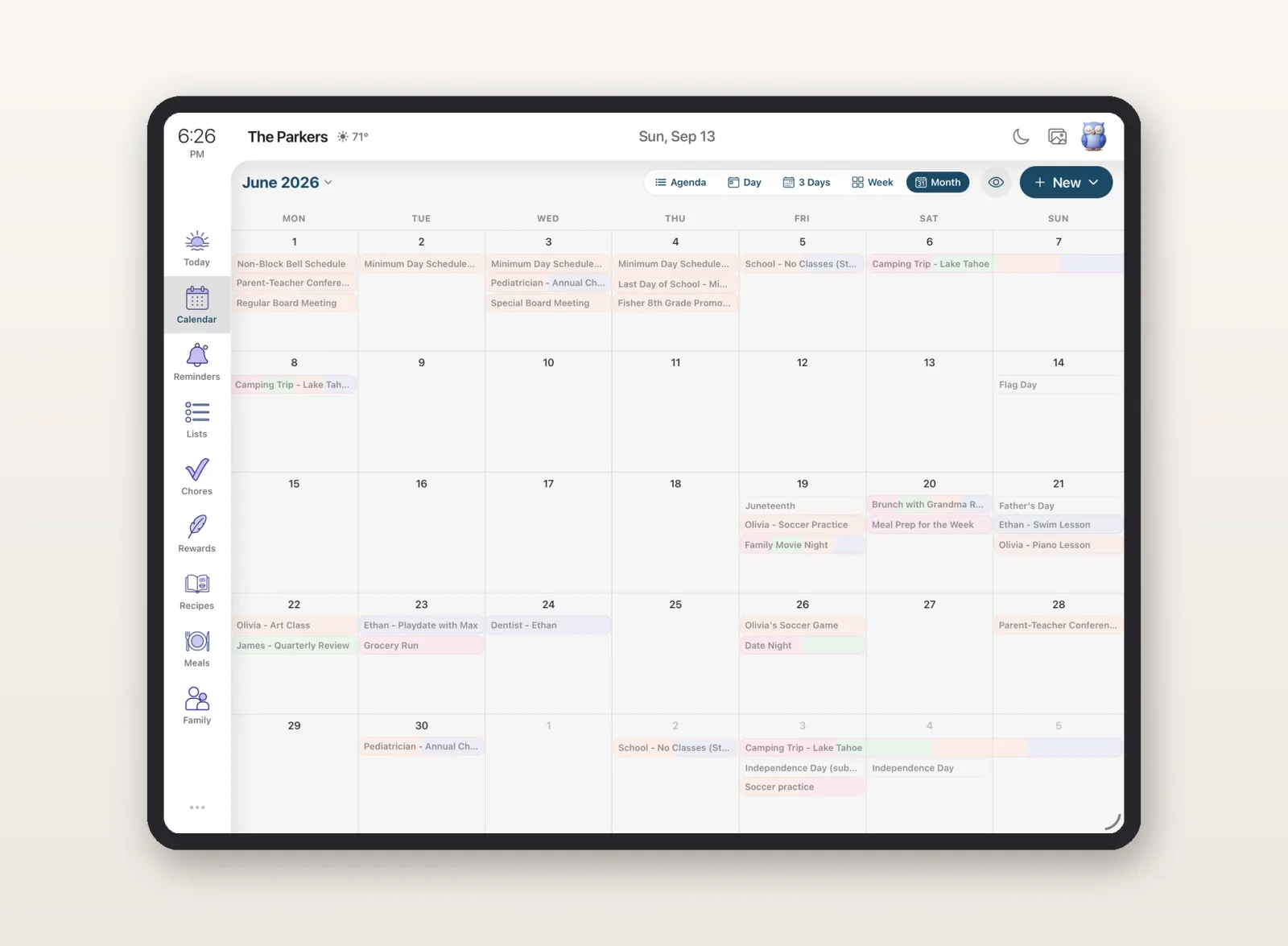
This is the gap a family organizer fills, and it's what we built Sense to do. You still get a shared family calendar every parent sees on their own phone, iPhone or Android, no ecosystem lock-in. On top of that:
- Forward a school email and the events appear automatically. The newsletter, the practice schedule, the camp registration. The AI pulls out every date, time, and deadline so you're not retyping anything.
- Chores, lists, and meal planning live in the same place as the calendar, so the family isn't spread across five apps.
- It still syncs with Google Calendar, so you don't have to abandon what you already use. Keep your work calendar where it is; let the family stuff flow into Sense.
If your only need is "let my partner see my schedule," a shared Google or Apple calendar is genuinely enough, and this guide gets you there. If you're the one holding all the school emails, chasing an Android partner who can't see the iPhone calendar, and re-typing dates every week, that's the part native sharing was never built for.
A shared family calendar that fills itself in
Works on iPhone and Android. Forward a school email and watch the events land - no manual entry, no ecosystem lock-in.
Try Sense Online or get the app:

4.8 on the App Store 2,000+ families
Frequently Asked Questions
How do I share my Google Calendar with my family?
On a computer, open Google Calendar, hover over your calendar under My calendars, click the three-dot menu, then Settings and sharing. Under Share with specific people or groups, click Add people and groups, enter each family member's email, and choose a permission level such as Make changes to events so they can add and edit. Click Send. Note that you cannot share a calendar or set permissions from the Google Calendar phone apps - it has to be done on the desktop website.
Can I share an Apple or iCloud calendar with my family on iPhone?
Yes. In the Calendar app, tap Calendars, tap the info (i) button next to an iCloud calendar, tap Add Person, and enter each family member. Tap a person's name to toggle Allow Editing on or off. Private iCloud calendar sharing requires everyone you invite to have an Apple Account. If you turn on Family Sharing instead, a shared calendar named Family is created automatically for the whole family group.
Can I share a calendar between an iPhone and an Android phone?
Not cleanly with Apple's tools. Private and Family Sharing iCloud calendars require every member to have an Apple Account, so an Android parent cannot properly join. The most reliable cross-platform option is a shared Google Calendar, which works on both iPhone and Android. Apple's only cross-platform route is a public read-only link, which lets others subscribe but not add or edit events.
What is the Apple Family Sharing calendar?
When you set up Apple Family Sharing, a shared calendar named Family is automatically added to every member's Calendar app, along with a shared Family reminders list. Any member can add events and they sync to everyone's devices. Membership follows the family group rather than per-calendar invites, and everyone can edit it. It is Apple-only, so every member needs an Apple Account.
Is there a better shared family calendar than Google or Apple?
For pure scheduling, Google and Apple shared calendars are fine and free. Their limits show up in family life: they work poorly across iPhone and Android, hold events only (no chores, meal planning, or per-person reminders), and cannot read a school email and turn it into events. A family organizer like Sense gives every parent a shared calendar on any device, plus email-to-calendar automation, chores, and lists, and can still sync with Google Calendar.