
Ollie is closing on November 6, 2026. That gives you about a week, and because Ollie lived in your texts, a lot of what it did for you isn't sitting in one place you can just download.
The good part: most of the move is a single evening if you do it in the right order. The first five steps are about Ollie and work no matter where you go next. The last one is setting up the new home. If you want the background on the shutdown first, read Ollie is shutting down: where to move your family.
Do this part today: anything Ollie was in the middle of, like a booking, a grocery order, or a bill payment, won't move to another app. Those are the things that can actually go wrong next week. Everything else can wait a few days.
Step 1: Save your Ollie export
Ollie says it will text you "an export of your data that you can then share with another personal assistant you trust." When it arrives, save a copy somewhere you control, like your notes app, a document, or an email to yourself. Links can stop working once a service closes.
Ollie's letter doesn't say what happens to your data after November 6. If you want it deleted, email hello@ollie.ai and ask.
Then read through the export once. You're looking for the family details you'd hate to explain again: allergies, the kids' schools and teachers, who does which pickup, favorite dinners, the pediatrician's name.
Step 2: Finish anything in progress
Scroll back through your Ollie thread for the last couple of weeks and screenshot anything still open:
- Appointments it was booking or rescheduling
- Grocery or household orders it placed or had queued
- Bills it was paying or reminding you about
- Subscriptions it was canceling for you
Wrap these up yourself before November 6. Check that the appointment is confirmed, the order arrived, and the bill shows as paid. Most family apps, Sense included, don't run errands like these, so there's nowhere to hand them off to.
Step 3: Check your calendar
If you connected Ollie to Google or Outlook Calendar, the events it created live in that calendar, not inside Ollie. They stay after the shutdown.
Open your calendar and look at the next few weeks. Are the practices, school dates, and appointments there? If something Ollie only mentioned in a text never made it to the calendar, add it now while you still have the thread to look at.
Step 4: Write down your routines and recurring reminders
Ollie probably reminded you about some things on a schedule: trash night, a weekly medication, the Thursday swim bag, a monthly bill. These are easy to forget because they just happened.
Make a quick list. You'll set them up again in Step 6, and it takes a couple of minutes once you have the list in front of you.
Step 5: Check your refund
Ollie says billing is canceled and you'll get a refund for any partial or unused months, for both Ollie and Ollie for Meals. You don't need to do anything. If it hasn't shown up after a week or so, email hello@ollie.ai.
Step 6: Set up your family's next home
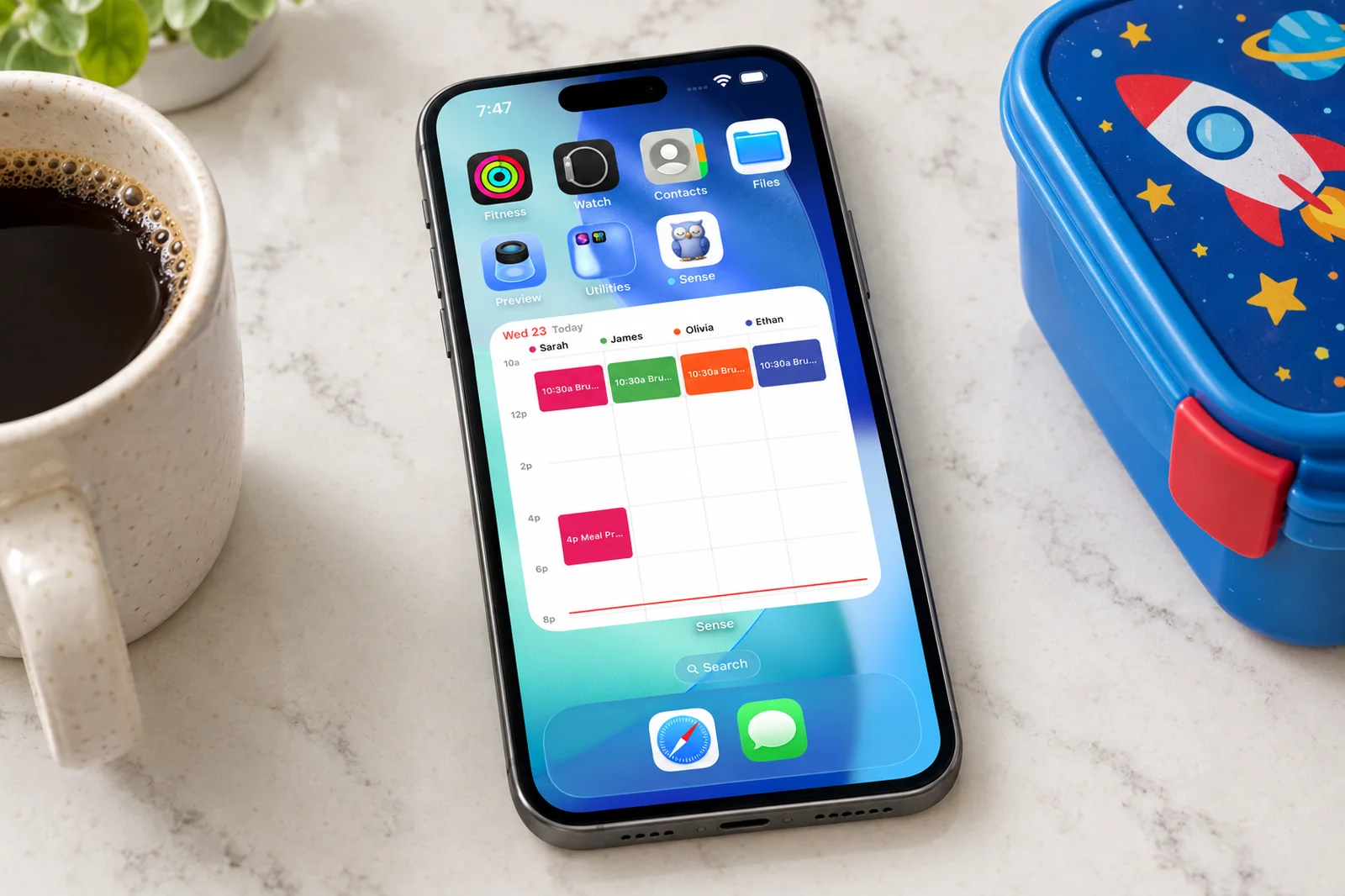
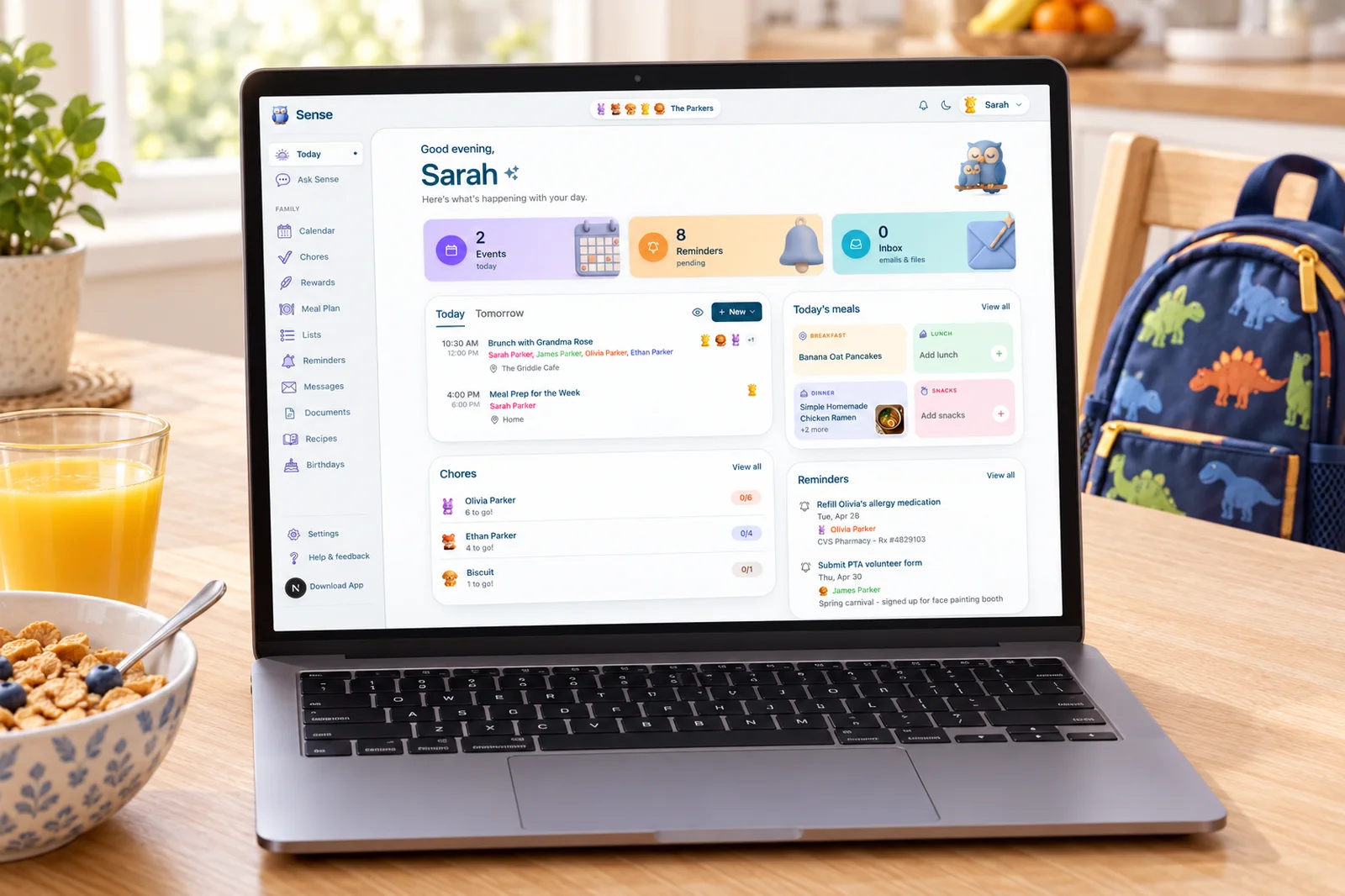
Here's how this looks in Sense. We make Sense, so we're not neutral, but these steps are the same idea in most family organizers. Sense is an app for iPhone, Android, and the web, not a text service, and the whole family sees the same plan.
- Connect your calendar. Add the same Google, Apple, or Outlook calendar Ollie used. The events from Step 3 show up right away.
- Invite your family. Your partner, a grandparent, and kids with their own phone each join on their own device and see the same calendar, lists, and reminders.
- Forward your first school email. Send it to share@getsense.ai from the address you signed up with. Sense pulls out every date, time, and place and puts them on the calendar. This replaces the inbox reading Ollie did, with you choosing what to send. See how email to calendar works.
- Rebuild your meal plan and shopping list. Add this week's dinners to the meal plan, import a few favorite recipes from their websites, and add the ingredients to a shopping list that sorts itself by aisle. Sense doesn't place the grocery order, so you'll take the list to the store or your delivery app.
- Tell Ask Sense your family's key facts. Open Ask Sense and type the details from your export: "Maya is allergic to tree nuts," "Leo has soccer Tuesdays and Thursdays," "the kids go to Lincoln Elementary." Sense remembers them and uses them from then on.
- Set up your reminders and routines. Use the list from Step 4. Recurring reminders, chores, and routines each take a few seconds.
- Turn on your daily summary. In Settings, go to Notifications and turn on the Daily Digest. Pick the hour, and Sense emails you the day ahead, a lot like the briefing Ollie used to send.
Set up your family in one evening
Connect your calendar, invite the family, and forward one school email. Free to try, no card needed.
Try Sense online or get the app:

What won't come with you
An honest list, so nothing surprises you:
- Your text thread. The conversation history stays with Ollie. Your export is the record you keep.
- Errands. Bookings, bill pay, and cancellations go back to being something you do yourself.
- Grocery ordering. You keep the list, not the checkout.
- Texting the assistant. Sense doesn't work over SMS or iMessage. You use the app or the web, or forward things in.
What you gain is a plan the rest of the family can see without asking you: a shared calendar, chores the kids check off, and, if you want it, a kitchen tablet that shows the day. Sense is free for 10 AI actions a month, and Premium is $6.99 a month or $59.99 a year for the whole family.
A quick checklist before November 6
- Save your Ollie export somewhere you control
- Screenshot and finish any open bookings, orders, and payments
- Confirm your Google or Outlook calendar has what Ollie added
- List your recurring reminders and routines
- Watch for your refund, or email hello@ollie.ai
- Set up your new organizer and forward your first school email
For a side-by-side of what each product does, read Sense vs Ollie. Sense is not affiliated with Ollie.